Why You Can't Delete That Blank Page in Word
That stubborn blank page in the middle or at the end of your Word document usually isn't an empty page at all — it's a section break. Word uses section breaks to divide a document into parts that can each have their own page size, orientation, margins, headers, and footers. A break of the type Next Page (and its cousins Even Page and Odd Page) forces whatever comes after it to start on a fresh page. When one of these breaks sits on an otherwise empty paragraph, Word still has to honor it, so it renders a page that contains nothing but the break itself. To you, it looks like a blank page that refuses to die.
The reason pressing Delete or Backspace so often fails is that a section break is not a normal character. It is attached to the invisible paragraph mark (¶) at the end of a paragraph, and inside the document's underlying XML it lives in a property container rather than in the text itself. Deleting the visible text around it leaves the break — and the blank page — untouched. Worse, the final section of a document is defined on the document body itself, not on any paragraph, which is why the "break" at the very end of a file can seem impossible to remove no matter what you press.
Three culprits account for nearly every phantom page: a Next Page section break sitting on an empty paragraph, an empty paragraph containing a manual page break (Ctrl+Enter), and a run of empty paragraphs left at the end of the document. The diagram below shows how a section break splits a document in two and where the extra page comes from. Once you know which culprit you are dealing with, you can remove it by hand using the steps below — or let the tool above do it in one click.

How to Delete a Section Break in Word Manually (Step by Step)
If you would rather remove the break yourself, here is the complete manual method for Word on Windows. It works the same way in Word 2016, 2019, 2021, and Microsoft 365, and takes about a minute once you know what to look for. (On a Mac? The steps are almost identical — see our guide to deleting a section break in Word on Mac for the exact menus and shortcuts.)
Step 1: Show formatting marks with the ¶ button
Section breaks are invisible in Word's normal view, which is the single biggest reason people fail to delete them. Go to the Home tab on the ribbon and click the paragraph mark button (¶) in the Paragraph group, or press Ctrl+Shift+8. Word now displays every hidden character: paragraph marks, spaces, tab arrows, page breaks — and, most importantly, section breaks. Leave the marks visible until you are completely done, so you can see exactly what you are deleting and what remains afterwards.

Step 2: Find the section break causing the blank page
Scroll to the blank page, or to the spot where the layout goes wrong. A section break appears as a double dotted line running across the page with a label in the middle, such as Section Break (Next Page) or Section Break (Continuous). In a long document, switch to the View tab and choose Draft view — breaks are much easier to spot there, because Word shows them as full-width lines without rendering pages. The break responsible for a phantom blank page is almost always a Next Page break sitting alone on an empty paragraph.
Step 3: Place your cursor directly before the break
Click at the very start of the dotted section break line, immediately to its left. You can also click anywhere on the line and press the Home key to jump to its beginning. Precision matters: if the cursor sits one character too early you will delete your own text instead of the break, and if it sits after the line you will need Backspace rather than Delete.
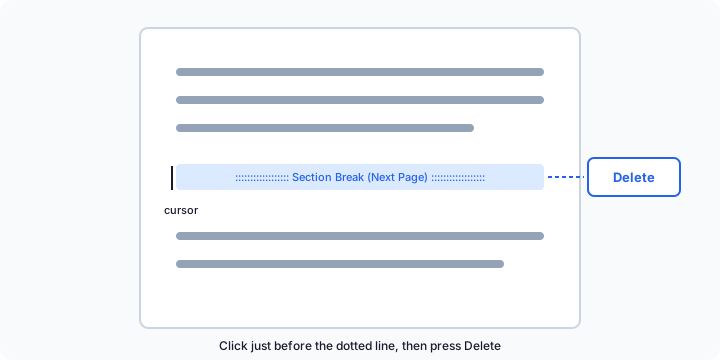
Step 4: Press Delete to remove the section break
Press the Delete key once. The dotted line disappears and the content that used to sit below the break flows upward. Keep in mind what happens behind the scenes: the two sections on either side of the break merge, and the merged text adopts the page setup of the following section. If the blank page came from several stacked breaks or extra empty paragraphs, repeat the deletion for each one — every leftover ¶ on an otherwise empty page is a suspect.
Step 5: Check the result and save
Look through the pages around the deleted break. Confirm the blank page is gone and that headers, footers, margins, and orientation still look right. Then click ¶ again (or press Ctrl+Shift+8) to hide the formatting marks, and save your document. If the layout shifted unexpectedly, press Ctrl+Z to undo everything and use the automatic fixer at the top of this page instead — it only removes breaks that cause blank pages.
When Manual Deletion Fails — and What Actually Works
The manual method is simple on paper, yet it fails often enough that thousands of people search for a fix every month. These are the most common walls you can hit, and what to do about each of them.
The break at the very end of the document. Word stores the final section's settings on the document itself rather than on a paragraph, so that last "break" is structural: no amount of pressing Delete will remove it. The good news is that the trailing blank page is almost never caused by the final section — it comes from empty paragraphs or a paragraph-level break sitting in front of it. Delete those instead and the page goes away.
A break immediately after a table. Word requires a paragraph after every table. When a section break lands on that required paragraph, deleting the paragraph is simply not allowed, and the break appears indestructible. The safe fix is to strip the break out of the paragraph's properties while keeping the paragraph — which is exactly what our tool does automatically.
The document is protected. If editing restrictions or a password protect part of the file, Word silently ignores your Delete presses inside restricted areas. Remove the protection first via Review, then Restrict Editing, and try again.
Track Changes is on. With Track Changes enabled, a "deleted" break is only marked for deletion and keeps affecting the layout until the change is accepted. Accept the deletion, or turn Track Changes off and delete the break again.
If you hit any of these walls, the upload tool at the top of this page is the reliable way out: it edits the document's underlying XML directly, removes only the breaks and empty paragraphs that cause blank pages, keeps the mandatory final section settings intact, and hands you back a clean copy in seconds.
FAQ
What is a section break in Word?
A section break divides a Word document into sections that can each have their own page size, orientation, margins, columns, headers, and footers. Word offers four types: Next Page, Continuous, Even Page, and Odd Page. A Next Page break always starts the following section on a new page — which is why a break sitting on an empty paragraph shows up as a blank page you cannot seem to remove.
Why can't I delete the section break at the end of my document?
Every Word document stores the settings of its final section on the document body itself rather than on a paragraph, so the very last section break is part of the document structure and cannot be deleted the way ordinary breaks can. The trailing blank page is usually caused not by that final section but by empty paragraphs or a paragraph-level break just before it — remove those and the page disappears. Our tool handles exactly this case and never touches the required final section settings.
Will removing a section break change my formatting?
It can. When you delete a section break, the two sections around it merge, and the merged text takes on the page setup of the section that followed the deleted break — including its headers, footers, margins, and page orientation. In the vast majority of blank-page cases both sections already share identical settings, so you will not notice any difference. If your sections used different headers or footers, check them after the fix and re-apply the ones you want.
Does this work with Word for Mac?
Yes. The .docx format is identical on Windows and macOS, so files created in Word for Mac are analyzed and fixed exactly the same way, and the tool itself runs in any modern browser on any operating system. If you prefer to remove the break by hand, the menus and keyboard shortcuts differ slightly on a Mac — see our dedicated guide to deleting a section break in Word on Mac.
Is my document safe? Do you upload my file?
Your file is never uploaded anywhere. Everything — reading the file, finding the section breaks, and producing the fixed copy — happens inside your browser, in memory, using JavaScript. No document content is ever sent over the network, and nothing is stored once you close the page. This is a hard design rule of the tool, not just a policy promise.
Does this tool work with Google Docs?
Not directly, because a Google Docs document is not a .docx file while it lives in Google Drive. You have two options: in Google Docs choose File, then Download, then Microsoft Word (.docx), and run the downloaded file through this tool — or remove the break inside Google Docs itself. Our Google Docs guide walks through that second option in a few short steps.